 server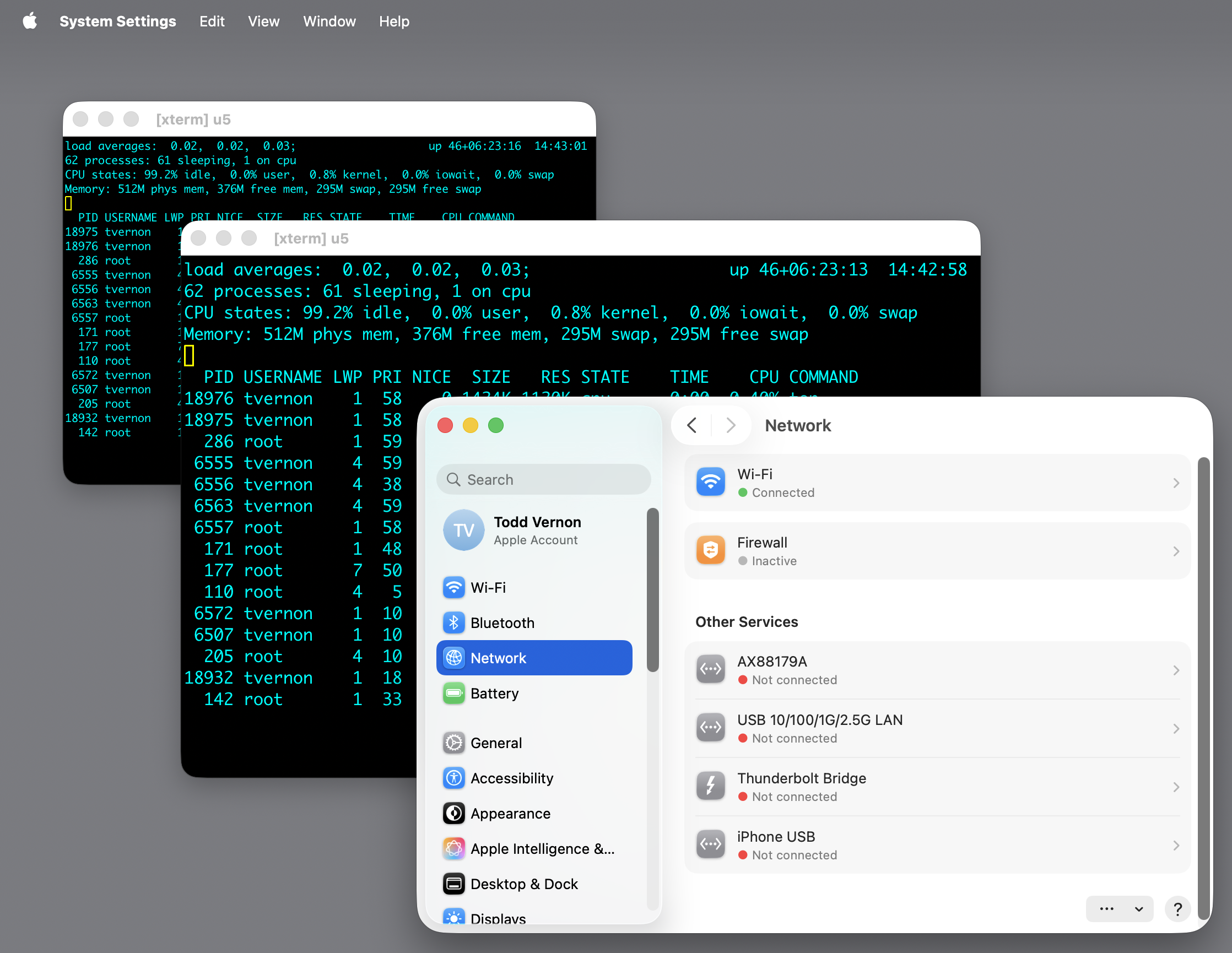
What it does
macXserver runs X clients at an integer scale factor that’s independent of your Mac’s desktop resolution. Pick 1, 2, or 3 (Comfortable or Compact in Preferences) and that’s the scale every X window uses. The rest of your desktop — Safari, Mail, Finder, your IDE — stays at native Retina resolution.
Vintage X clients were designed for the displays of their era. Dropped onto a
modern Retina screen at their native resolution, an xterm -fn 7x14 is
technically correct and visually unreadable. The most common workaround has been
to drop the entire Mac desktop to a non-native resolution while you’re using X,
then change it back. macXserver picks the scale per X-window instead, so I get a
comfortably-sized xterm next to native Mac apps that stay at native Retina
resolution. No mode switching.
Glyph rendering, line strokes, and pixmaps all participate in the scaling because the rendering pipeline is built on Core Graphics with a CTM-controlled scale plane.
Technical detail
The scale factor is applied at three levels, decomposed in SERVER_RESOLUTION_SCALING_AND_FONTS.md :
- Geometry plane. Window sizes, coordinates, and pixmap dimensions report to the client in X logical pixels. The client sees a display of, say, 1280×900 on a Studio Display that’s actually 5K.
- Glyph plane. Fonts are instantiated at an integer pointSize chosen to fit the X logical cell exactly. The rendered glyph is sharp at the device scale because Core Text gets to hint at the real backing resolution.
- Stroke plane. Line strokes pick up a +0.5 user-pixel CTM shift so that X integer coordinates land at CG pixel centers. The shift is scale-agnostic; the same stroke width is crisp at 1×, 2×, and 3×.
You can change the scale with --scale {1,2,3} on the command line or via the
Display Size radio in Preferences (Auto / Comfortable / Compact).
There’s no 1.5× or 2.5× option because vintage X clients depend on pixel-exact draw-to-erase semantics. xclock erases its minute hand by drawing the same line again in the background color, and that only covers the original pixels cleanly at integer scales. See Pixel perfect for the full discussion. Integer only is load-bearing, not a default.